
Why Formatting Breaks When Copy Pasting Text
9 Powerful Reasons Why Formatting Breaks When Copy Pasting Text and How to Fix It
Understanding Why Formatting Breaks When Copy Pasting Text is essential for bloggers, students, office workers, editors, developers, marketers, and SEO professionals who regularly move content between websites, documents, emails, spreadsheets, PDFs, and content management systems.
Few things are more frustrating than copying perfectly formatted text only to paste it into another platform and discover:
- broken paragraphs
- random fonts
- extra spaces
- strange symbols
- inconsistent headings
- messy line breaks
Formatting issues waste time, reduce professionalism, and hurt readability. They can also damage SEO structure, especially for websites targeting readers in the USA, UK, Canada, and Australia.
In this complete guide, you will learn exactly why formatting breaks when copy pasting text, what causes these issues, and how to fix formatting problems quickly using smart editing strategies and text tools.
You will also discover professional formatting tips that improve readability, SEO performance, and content consistency.
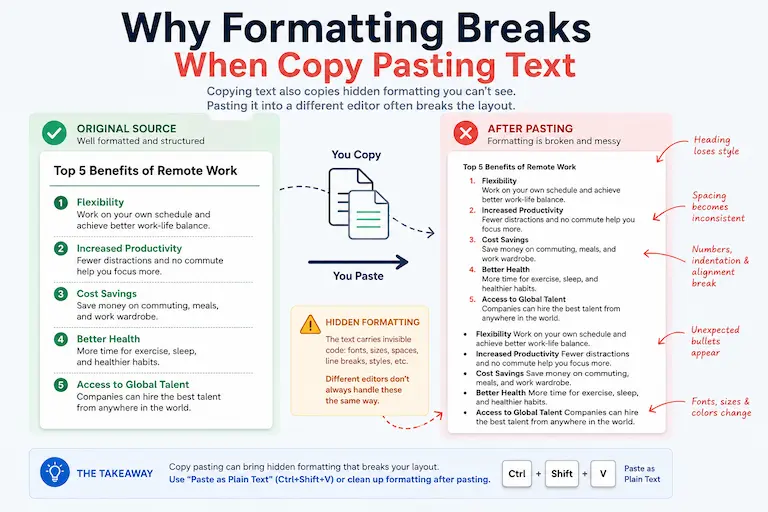
What Happens When You Copy and Paste Text?
When you copy text, you are not just copying words.
Most applications also copy:
- fonts
- font sizes
- colors
- spacing
- HTML code
- hidden formatting
- paragraph styles
- hyperlinks
When pasted into another platform, these formatting elements may conflict with the destination software.
This creates formatting inconsistencies.
Why Formatting Breaks When Copy Pasting Text
There are several major reasons formatting breaks during copy-paste actions.
Different Software Uses Different Formatting Rules
One of the biggest causes of formatting issues is compatibility differences between applications.
For example:
- Microsoft Word uses rich text formatting
- Google Docs uses web-based formatting
- Websites use HTML and CSS
- PDFs store layout differently
- Emails use simplified formatting
When text moves between these systems, formatting conflicts occur.
Hidden HTML Code Causes Formatting Problems
Websites contain hidden HTML and CSS code.
When copied, this invisible code may transfer into your editor.
This often causes:
- inconsistent fonts
- oversized headings
- broken spacing
- alignment issues
- unwanted colors
Example
Copying text from a news website into WordPress may import hidden styling automatically.
PDFs Create Broken Formatting
PDFs are designed for visual display, not text editing.
When copied from PDFs, text may lose:
- paragraph structure
- proper spacing
- sentence formatting
- line continuity
This often results in:
Incorrect:
- Thisisabrokenparagraphwithspacingissues.
Or:
- random
line
breaks
PDF conversions are one of the biggest formatting challenges for writers and editors.
Extra Spaces and Line Breaks
One of the most common formatting problems involves unnecessary spaces.
Example:
Incorrect:
- This sentence has extra spaces .
Correct:
- This sentence has not extra spaces.
If copied text contains repeated spaces or unwanted gaps, clean them before continuing
if you want to learn more about removing extra spacing from text, read this powerful and practical guide
How to Remove Extra Spaces in Text
Font Compatibility Issues
Different platforms support different font systems.
When the original font is unavailable, the destination application substitutes another font automatically.
This can change:
- text appearance
- line spacing
- alignment
- readability
Smart Quotes and Special Characters Break
Special characters may not transfer correctly between platforms.
Examples include:
- curly quotation marks
- em dashes
- accented letters
- Unicode symbols
This often creates strange replacement characters like:
- ???
- □□□
- é
These issues are common when copying text between operating systems or outdated software.
Copying From AI Tools or Chat Apps
AI tools and messaging platforms sometimes insert hidden formatting elements.
This can create:
- inconsistent paragraph spacing
- unexpected bold formatting
- broken bullet points
- invisible characters
Cleaning pasted text before publishing is essential.
Why Formatting Breaks When Copy Pasting Text in WordPress
Website editors like WordPress often conflict with copied formatting.
Problems include:
- oversized headings
- inline CSS styles
- inconsistent margins
- broken lists
- strange line spacing
Pasting directly from Microsoft Word into WordPress is especially problematic.
Professional bloggers usually paste content as plain text first.
Why Formatting Breaks When Copy Pasting Text in Google Docs
Google Docs uses cloud-based formatting rules.
When importing content from PDFs or Word documents, formatting inconsistencies frequently appear.
Common problems:
- paragraph shifts
- bullet formatting issues
- heading inconsistencies
- spacing errors
SEO Problems Caused by Broken Formatting
Formatting issues negatively affect user experience and readability.
This indirectly impacts SEO because messy formatting can increase:
- bounce rates
- reader frustration
- content abandonment
SEO Benefits of Clean Formatting
- Better readability
- Improved mobile experience
- Easier content scanning
- Stronger user engagement
- Cleaner HTML structure
Search engines prioritize content that users can easily consume.
How to Fix Formatting Problems Quickly
Professional writers use several techniques to clean pasted text efficiently. The best approach is to remove unwanted formatting first, correct the text structure, and then check the final result.
Paste as Plain Text
One of the easiest ways to prevent formatting problems is to paste the content without carrying over its original formatting.
Shortcut
Windows:
- Ctrl + Shift + V
Mac:
- Command + Shift + V
Plain-text pasting removes most source formatting automatically, giving you a cleaner starting point for further editing.
Use a Remove Extra Spaces Tool
Copied text can contain repeated spaces and unwanted gaps that are difficult to spot manually. The Remove Extra Spaces tool can clean these spacing problems quickly.
- double spaces between words
- unwanted spaces in copied text
- inconsistent spacing after editing
Cleaning these spaces before final formatting makes the text easier to review and edit.
Reformat Headings Manually
After pasting, apply consistent heading styles manually to restore the document’s visual hierarchy. Check that headings use the appropriate Word heading levels rather than relying on formatting carried over from the original source.
Use a Text Case Converter
If copied text contains inconsistent capitalization, the Text Case Converter can quickly standardize headings, sentences, and other text without manual retyping.
Check Sentence and Paragraph Structure
After cleaning up pasted text, the Sentence Counter can help you check sentence and paragraph structure and confirm that the content still has the expected organization.
Verify the Text After Cleaning
Once the formatting has been cleaned up, a quick text check can help you confirm that the copied content still meets your requirements.
Character Counter Without Spaces
If pasted text may have gained or lost spaces during cleanup, the Character Counter Without Spaces can help you compare character counts without spaces and check whether the text changed unexpectedly.
Word Counter for Essays
If you’re pasting text into an essay or assignment, the Word Counter for Essays can help you verify the final word count after cleaning and reformatting the copied content.
Best Practices to Prevent Formatting Problems
Always Paste as Plain Text
This prevents hidden formatting transfer.
Clean Text Before Publishing
Always proofread copied content before posting online.
Avoid Copying Directly From PDFs
Convert PDFs properly before editing.
Use Professional Formatting Tools
Automated tools save time and reduce errors significantly.
Maintain Consistent Styles
Use the same font, spacing, and heading structure throughout the document.
Professional Resources for Formatting Standards
Writers and editors often follow official formatting guidelines.
Helpful resources include:
These resources explain formatting best practices used worldwide.
The Psychology Behind Clean Formatting
Readers judge content quality visually within seconds.
Clean formatting improves:
- trust
- readability
- comprehension
- professionalism
Poor formatting creates cognitive friction and discourages reading.
This is especially important for audiences in the USA and UK, where user experience strongly affects engagement.
Having formatting problems with a college assignment? Read this easy guide.
How to Format College Assignments
Final Thoughts on Why Formatting Breaks When Copy Pasting Text
Understanding Why Formatting Breaks When Copy Pasting Text helps writers, bloggers, students, marketers, and editors create cleaner, more professional content.
Formatting breaks because different platforms use different systems for:
- fonts
- spacing
- HTML
- paragraph structure
- hidden styling
Fortunately, most formatting issues are easy to fix using:
- plain text pasting
- proofreading
- formatting cleanup tools
- spacing correction tools
Clean formatting improves readability, SEO performance, and overall user experience.
Instantly Clean Broken Formatting With a Remove Extra Spaces Tool
Want the fastest way to fix messy copied text?
- remove double spaces instantly
- fix broken formatting
- clean copied text
- improve readability
- save editing time
It is one of the most useful tools for bloggers, students, SEO writers, marketers, and editors.
FAQs About Why Formatting Breaks When Copy Pasting Text
Why does formatting break when copy pasting text?
Formatting breaks because different applications use different formatting systems, fonts, HTML structures, and styling rules.
Why do extra spaces appear after pasting text?
Extra spaces often come from copied HTML code, PDFs, or hidden formatting characters.
How can I fix broken formatting quickly?
You can use a Remove Extra Spaces to tool clean repeated spaces, unwanted gaps, and other spacing problems in copied text.
Why does text from PDFs look messy after copying?
PDFs are optimized for visual layout, not text editing, which often causes broken spacing and paragraph formatting.
Can broken formatting affect SEO?
Yes. Poor formatting reduces readability and user experience, which can indirectly hurt SEO performance.
What tool helps clean copied text formatting?
The Remove Extra Spaces tool is useful for cleaning repeated spaces, unwanted gaps, and other spacing problems that often appear in copied text.