
How to Fix Weird Spacing in Word Documents
How to Fix Weird Spacing in Word Documents: 9 Effective Methods
Learning How to Fix Weird Spacing in Word Documents is essential for students, bloggers, office workers, business professionals, researchers, and writers who regularly use Microsoft Word for professional documents.
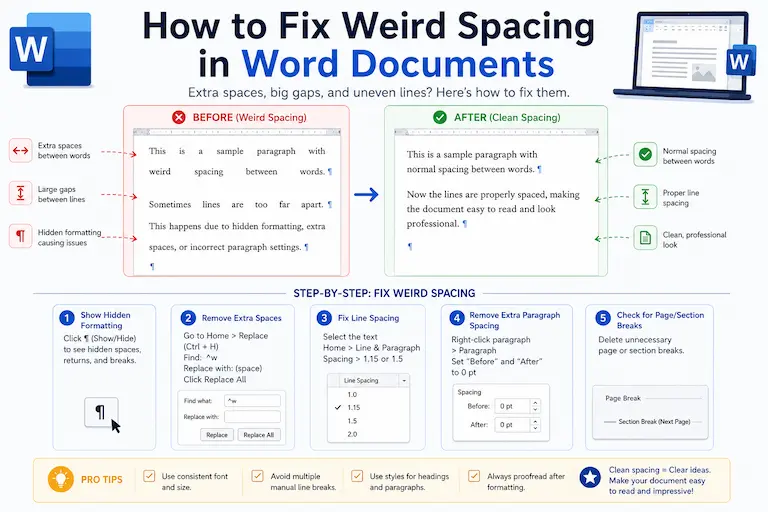
Weird spacing problems can instantly make a document look messy, unprofessional, and difficult to read. Common issues include:
- large gaps between words
- uneven paragraph spacing
- random line breaks
- stretched sentences
- inconsistent indentation
- extra spaces after copy-pasting
These formatting issues are extremely common in Word documents, especially after copying content from websites, PDFs, emails, Google Docs, or AI writing tools.
For users in the USA, UK, Canada, and Australia, document formatting quality matters in academic writing, business communication, SEO content creation, and professional publishing.
In this detailed guide, you will learn exactly how to fix weird spacing in Word documents, what causes spacing problems, and the fastest ways to clean document formatting professionally.
You will also discover powerful text tools that instantly improve formatting accuracy and readability.
Why Weird Spacing Happens in Word Documents
Microsoft Word automatically applies formatting rules behind the scenes.
When content is copied from different sources, hidden formatting conflicts often appear.
Common causes include:
- copy-pasting from websites
- imported PDF formatting
- inconsistent paragraph settings
- justified alignment
- extra line breaks
- hidden formatting marks
- tab spacing problems
Understanding the cause helps fix the problem faster.
Common Types of Weird Spacing in Word Documents
Different spacing problems require different solutions.
Extra Spaces Between Words
This is one of the most common issues.
Example of Extra Spaces
Incorrect:
- This sentence contains extra spaces between several words.
Correct:
- This sentence contains extra spaces between several words.
These problems usually happen because of:
- accidental typing
- copied formatting
- OCR conversion
- AI-generated text
Use this free tool to fix this instantly.
Large Gaps Between Paragraphs
Paragraph spacing issues often happen because of incorrect paragraph settings.
Symptoms include:
- oversized blank areas
- inconsistent line spacing
- uneven document structure
Stretched Text in Justified Alignment
Justified text forces words to align evenly across the page.
This sometimes creates unusual gaps between words.
Example:
- Text spreads awkwardly across the line.
This problem is especially common in narrow document margins.
Random Line Breaks
Copied content from PDFs and websites often creates broken paragraphs.
Incorrect:
- This paragraph
contains strange
line breaks.
Correct:
- This paragraph contains strange line breaks.
Hidden Formatting Symbols
Invisible formatting marks can create spacing inconsistencies.
These include:
- tabs
- paragraph marks
- manual line breaks
- hidden spaces
Microsoft Word stores these formatting characters internally.
there are many reasons, why formatting breaks when copy pasting text , find the reasons here
Why Formatting Breaks When Copy Pasting Text
How to Fix Weird Spacing in Word Documents Quickly
There are several fast and effective solutions.
Use Show/Hide Formatting Marks
Microsoft Word includes a formatting visibility tool.
Steps
- Open Word
- Click the Home tab
- Select the ¶ symbol
This reveals:
- hidden spaces
- tabs
- paragraph marks
- line breaks
You can then manually remove problematic formatting.
Use Find and Replace
One of the easiest solutions is replacing double spaces.
Steps
- Press Ctrl + H
- Find two spaces
- Replace with one space
- Repeat until clean
This quickly removes extra spacing problems.
Adjust Paragraph Spacing Settings
Steps
- Highlight the text
- Open Paragraph Settings
- Set spacing before and after to 0 pt
- Choose proper line spacing
This fixes inconsistent paragraph gaps.
Change Text Alignment
If justified text creates stretched spacing:
Solution
Switch alignment from:
- Justified → Left Align
This usually eliminates awkward word spacing instantly.
Paste Text Without Formatting
When copying content from websites or PDFs:
Use Plain Text Paste
Windows:
- Ctrl + Shift + V
Mac:
- Command + Shift + V
This removes hidden formatting automatically.
Use a Remove Extra Spaces Tool
The fastest method is using a professional Remove Extra Spaces tool.
It instantly fixes:
- double spaces
- irregular gaps
- broken formatting
- copied text issues
This saves significant editing time.
If you’re dealing with extra spaces beyond Word documents, see our guide on How to Remove Extra Spaces in Text
How Weird Spacing Affects Professional Documents
Formatting quality strongly influences readability and professionalism.
Weird spacing can make documents appear:
- careless
- unorganized
- difficult to read
- visually distracting
This matters especially for:
- resumes
- essays
- reports
- contracts
- business proposals
- academic papers
Clean formatting creates stronger first impressions.
How Weird Spacing Impacts SEO Content
For bloggers and SEO writers, spacing affects user experience.
Poor formatting increases:
- bounce rates
- reader frustration
- content abandonment
Good formatting improves:
- readability
- engagement
- mobile experience
- content scanning
Search engines prioritize user-friendly content presentation.
Best Tools for Cleaning Word Document Formatting
Professional writers use text tools to improve formatting efficiency.
Remove Extra Spaces
A Remove Extra Spaces tool instantly fixes spacing inconsistencies and formatting issues.
Character Counter Without Spaces
A Character Counter Without Spaces helps optimize title lengths and metadata.
Sentence Counter
A Sentence Counter improves paragraph readability and structure.
Text Case Converter
A Text Case Converter standardizes capitalization formatting instantly.
Word Counter for Essays
Students use a Word Counter for Essays to manage assignment limits accurately.
Reading Time Calculator
A Reading Time Calculator estimates how long readers spend on content.
Common Formatting Mistakes to Avoid
Many users unknowingly create spacing problems.
Pressing Spacebar Multiple Times
Never use repeated spaces for alignment.
Use proper formatting tools instead.
Mixing Tabs and Spaces
Combining tabs with spaces creates inconsistent alignment.
Copying Directly From PDFs
PDF formatting often imports broken spacing.
Always clean copied text first.
Ignoring Hidden Formatting
Invisible formatting marks frequently cause strange spacing behavior.
Professional Tips for Better Word Formatting
Use Styles Instead of Manual Formatting
Word styles maintain consistency automatically.
Keep Formatting Simple
Avoid unnecessary spacing and decorative formatting.
Proofread Before Sharing
Always review spacing before submitting or publishing documents.
Use Formatting Cleanup Tools
Automation tools dramatically reduce editing time.
Official Formatting Resources
Professional writers and businesses often follow trusted formatting guidelines.
Helpful resources include:
These resources explain formatting standards and troubleshooting methods.
The Psychology Behind Clean Formatting
Readers judge document quality visually within seconds.
Clean formatting improves:
- trust
- readability
- professionalism
- comprehension
Messy spacing creates cognitive friction and reduces engagement.
This is especially important for audiences in the USA and UK where document presentation strongly affects credibility.
If you’re formatting an academic paper or assignment, see our guide on How to Format College Assignments for practical formatting tips.
Final Thoughts on How to Fix Weird Spacing in Word Documents
Understanding How to Fix Weird Spacing in Word Documents helps students, writers, bloggers, business professionals, and editors create cleaner, more readable documents.
Most spacing problems come from:
- hidden formatting
- copied content
- paragraph settings
- justified alignment
- imported PDF text
Fortunately, these issues are easy to solve using:
- formatting cleanup
- paragraph adjustments
- plain text pasting
- spacing correction tools
Professional formatting improves readability, professionalism, and overall user experience.
Instantly Clean Word Formatting With a Remove Extra Spaces Tool
Want the fastest way to clean extra spaces from your text?
Use it to clean copied text, remove double spaces, fix inconsistent formatting, and improve readability in seconds.
It is one of the most valuable tools for students, bloggers, editors, office workers, and SEO writers.
FAQs About How to Fix Weird Spacing in Word Documents
Why does weird spacing happen in Word documents?
Weird spacing usually occurs because of hidden formatting, copied text, paragraph settings, or justified alignment.
How can I fix extra spaces in a Word document quickly?
You can use Find and Replace or a Remove Extra Spaces tool to clean spacing instantly.
Why does justified text create large gaps?
Justified alignment stretches words across the page evenly, sometimes creating awkward spacing between words.
What is the best tool for fixing weird spacing in Word documents?
A Remove Extra Spaces tool is one of the fastest and most effective solutions for cleaning spacing issues.
Can weird spacing affect professional documents?
Yes. Poor formatting reduces readability and makes documents appear less professional.
How do I stop formatting issues when copying text?
Paste content as plain text first, then apply consistent formatting manually.