
Remove Extra Spaces
Use this free remove extra spaces tool to clean messy text instantly. Remove double spaces, extra line breaks, leading spaces, trailing spaces, and unwanted gaps from copied text, essays, blog drafts, forms, emails, and documents. It also handles tabs, non-breaking spaces, and other special spaces that look normal but are different characters.
Fine-tune your cleaning (optional)
Original Characters
Cleaned Characters
Characters Removed
Table of Contents
Use these quick links to understand how this text spacing cleaner works.
- What is a Remove Extra Spaces Tool?
- How to Remove Extra Spaces from Text
- Text Cleaning Options
- How This Tool Cleans Your Text
- Which Spaces Does This Tool Treat as Spaces?
- Why Does Copied Text Have Extra Spaces?
- Why Clean Extra Spaces Before Publishing?
- One Space or Two After a Period?
- Remove Extra Spaces in Word, Excel and Google Docs
- Related Text Tools
- FAQs About Removing Extra Spaces
What is a Remove Extra Spaces Tool?
A remove extra spaces tool cleans text by removing unwanted spaces, double spaces, repeated blank lines, leading spaces, and trailing spaces. It is useful when copied text looks messy after being taken from PDFs, websites, emails, documents, forms, spreadsheets, OCR tools, or online editors.
This tool helps you clean text online before using it in essays, blog posts, articles, social media captions, product descriptions, emails, form submissions, and documents. You can also remove extra line breaks or remove all spaces depending on your formatting need.
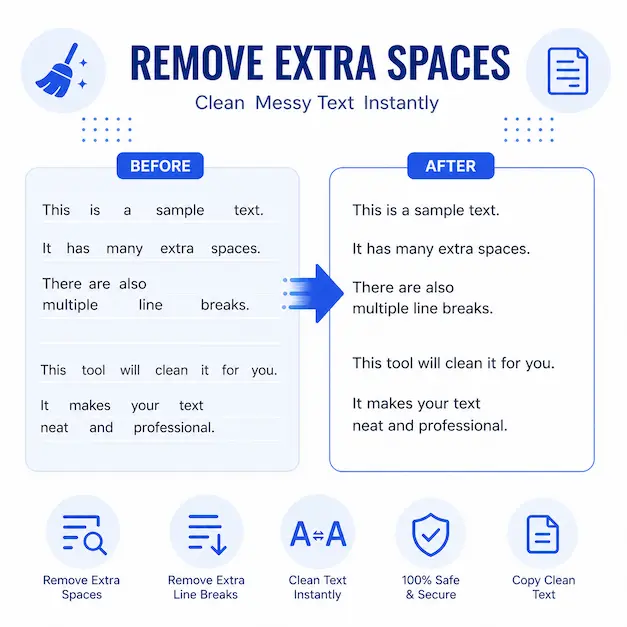
The tool works instantly in your browser. Paste messy text, choose the cleaning mode, and copy the clean result. It saves time and helps make your text easier to read, submit, publish, or paste into another platform. You can also keep indentation, remove blank lines, join broken lines into one paragraph, or show hidden characters to see exactly what is in your text.
How to Remove Extra Spaces from Text
Paste Messy Text
Copy text with double spaces, extra gaps, or unwanted line breaks and paste it into the input box.
Choose Cleaning Mode
Select whether to remove extra spaces, remove extra line breaks, or remove all spaces. Then tick or untick the extra options to fine-tune the result. The output updates as you type.
Copy Clean Text
Check the “What changed” summary and the cleaned output, then copy the improved text for your document, website, or form.
Text Cleaning Options
Remove Double Spaces
Convert repeated spaces and tabs between words into a single clean space for better readability.
Remove Extra Line Breaks
Reduce several blank lines to one, or remove blank lines completely, when copied text has large vertical gaps.
Trim Text
Remove leading and trailing spaces from every line, with an option to keep indentation.
Remove All Spaces
Remove all whitespace from your text when you need a compact string without spaces, tabs, or line breaks.
Clean Copied Text
Fix messy formatting from PDFs, websites, emails, forms, and document editors.
Instant Browser Tool
Clean your text instantly without signup, installation, upload, or manual editing.
Join Lines
Turn line breaks into single spaces to make one paragraph, without sticking words together.
Special Spaces
Convert non-breaking, narrow, ideographic, en, em and thin spaces into normal spaces so they can be cleaned like any other space.
Hidden Characters
See spaces, tabs, line breaks and invisible characters as visible symbols, and remove zero-width spaces if you need to.
How This Tool Cleans Your Text
The tool follows the same steps every time, in this order, so you always know what to expect. Steps marked “optional” only run when you tick them in the options box.
- Line breaks are standardised. Windows, Mac and Linux line endings, and the rare line separator and paragraph separator characters, all become one normal line break.
- Zero-width spaces and BOM are removed (optional, off by default). Zero-width joiners and non-joiners are never touched.
- Special spaces become normal spaces (on by default). Non-breaking, narrow, ideographic, en, em and thin spaces turn into the ordinary space character so the next steps can clean them.
- Each line is cleaned on its own. Repeated spaces and tabs collapse into one space, and spaces at the start and end of the line are trimmed. Tick “Keep indentation” to leave the start of each line alone.
- Blank lines are handled. You can keep them, reduce several to one, or remove them all. When trimming is on, blank lines at the very start and end of the text are dropped.
- Lines are joined (optional). Every line break becomes a single space and blank lines disappear, so the last word of one line never sticks to the first word of the next.
- Spaces before punctuation are removed (optional, off by default). Only a space right before , . ; : ! or ? is removed, and only when that mark is followed by a space or the end of the text. This keeps smileys such as 🙂 safe.
Remove All Spaces works differently. It deletes every space, tab, special space and line break and joins everything into one string. The tool only ever touches spaces, tabs, line breaks and, if you ask for it, zero-width characters. Letters, numbers, punctuation, emoji and the order of your words stay exactly as you typed them.
Which Spaces Does This Tool Treat as Spaces?
Not every space is the same character. Some look identical on screen but are different Unicode characters, which is why a search for two spaces can miss them. This table shows exactly how this tool handles each one.
| Character | Code | What this tool does |
|---|---|---|
| Normal space | U+0020 | Collapsed and trimmed. |
| Tab | U+0009 | Turned into one space when “Collapse” is on. Kept at the start of a line when “Keep indentation” is on. |
| No-break space | U+00A0 | Converted to a normal space when “Treat special spaces as normal spaces” is on (the default). |
| Narrow no-break space | U+202F | Converted to a normal space, same as above. |
| En space, em space, thin space, hair space and similar | U+2000 to U+200A | Converted to a normal space, same as above. |
| Ideographic space (used in Chinese, Japanese and Korean text) | U+3000 | Converted to a normal space, same as above. |
| Ogham space mark and medium mathematical space | U+1680, U+205F | Converted to a normal space, same as above. |
| Vertical tab and form feed | U+000B, U+000C | Converted to a normal space, same as above. |
| Line breaks: Windows (CR+LF), old Mac (CR), Linux (LF), line separator, paragraph separator and next line | U+000D U+000A, U+000D, U+000A, U+2028, U+2029, U+0085 | Turned into one standard line break, then handled by the blank line, trim and join options. |
| Zero-width space | U+200B | Deleted only if “Remove zero-width spaces and BOM” is ticked. |
| Zero-width no-break space (byte order mark, BOM) | U+FEFF | Deleted only if “Remove zero-width spaces and BOM” is ticked. |
| Zero-width non-joiner and zero-width joiner | U+200C, U+200D | Never changed. They matter in scripts such as Persian and Urdu, and they hold emoji sequences together. |
| Soft hyphen and word joiner | U+00AD, U+2060 | Never changed. |
A no-break space is the usual culprit when two spaces look right but a search for double spaces finds nothing. With Remove All Spaces, every space, tab, special space and line break in this table is deleted.
Why Does Copied Text Have Extra Spaces?
Extra spacing rarely comes from nowhere. It usually travels with the text from the place you copied it. These are the most common sources:
- PDF files. A PDF is built to look right on a page, not to hold flowing text, so copying from one often brings a line break at the end of every printed line and extra spaces in odd places.
- Web pages. Pages often use non-breaking spaces for layout. They look like normal spaces, but they are a different character.
- Typing habits. Many people still type two spaces after a period, or press the space bar several times to line things up.
- Scanned documents and OCR. Text recognition software has to guess where words start and end, so it can add or miss spaces.
- Emails and chat. Plain-text emails are often wrapped into short lines, and some web editors insert non-breaking spaces when you type several spaces in a row.
- Spreadsheets and databases. Exported cells often end with spaces nobody can see, which can stop two values that look identical from matching.
Tip: if you are not sure what is hiding in your text, click “Show Hidden Characters” under the tool. It marks every space, tab, line break and invisible character so you can see exactly what you are cleaning.
Why Clean Extra Spaces Before Publishing?
Extra spaces and line breaks make text look unprofessional. They can also create formatting problems in blog posts, essays, emails, product descriptions, database fields, spreadsheets, social posts, and online forms. Clean text is easier to read, copy, submit, and publish.
Writers, students, editors, marketers, developers, and office users can use this tool to clean text quickly. It is especially helpful when text is copied from PDF files, old documents, OCR tools, web pages, or email threads where spacing may be inconsistent.
Clean spacing improves readability and reduces manual editing. A paragraph with repeated gaps can distract readers, while neatly spaced text looks more polished and easier to scan. This is useful for professional writing, academic work, web publishing, and form submissions.
One Space or Two After a Period?
Most modern style guides use one space after a period. The APA Style guide on spacing after a period says: “Use one space after a period (or other punctuation mark at the end of a sentence) when writing in APA Style.” It adds that if your instructor or a non-APA publisher requires something different, such as two spaces, you should follow their specifications.
Two spaces after a period is still common out of habit, and it is a frequent reason text looks uneven after it is pasted from one place to another. With “Collapse repeated spaces and tabs into one space” ticked, this tool turns two spaces after a period into one. If you must keep two, untick that option.
Remove Extra Spaces in Word, Excel and Google Docs
You can also fix spacing inside the program where the text lives. These are the basic steps for three popular ones. If the text also has line breaks, tabs or special spaces, pasting it into the tool above is usually quicker.
In Microsoft Word
Press Ctrl+H to open Find and Replace. Type two spaces in “Find what” and one space in “Replace with”,
then click Replace All. Repeat until Word reports no more replacements, because long runs of spaces need more than one pass.
A faster way is to tick “Use wildcards”, then type one space followed by {2,} in “Find what”. That pattern matches two or more spaces in a row,
so one Replace All with a single space in “Replace with” is usually enough. A search for normal spaces will not find non-breaking spaces, because they are a different character.
In Excel
Use the TRIM function in a helper column, for example =TRIM(A2). It removes extra spaces and leaves a single space between words.
TRIM only removes the normal space character (code 32), so text copied from a web page may still contain non-breaking spaces;
Microsoft says the same in its TRIM function guide.
For those, use =TRIM(SUBSTITUTE(A2,CHAR(160)," ")). Then copy the results and use Paste Special, Values to replace the original cells.
In Google Docs
Open Edit, then Find and replace, and tick “Match using regular expressions”.
Type one space followed by {2,} in “Find”, type one space in “Replace with”, and click Replace all.
Google describes these options in its
Find and replace guide.
FAQs About Removing Extra Spaces
What does remove extra spaces mean?
Removing extra spaces means deleting unnecessary blank spaces, double spaces, repeated gaps, and unwanted spacing from text while keeping the text readable.
Can this tool remove double spaces?
Yes, this tool can replace multiple spaces between words with a single clean space.
Can I remove extra line breaks?
Yes, choose the line break option to reduce repeated blank lines and clean extra paragraph gaps.
Can I remove all spaces from text?
Yes, choose the remove all spaces option if you want to delete every space from your text.
Can I clean copied text from PDFs or websites?
Yes, this tool is useful for cleaning copied text from PDFs, websites, emails, OCR tools, online forms, and document editors.
Is this remove extra spaces tool free?
Yes, this tool is free to use and works instantly in your browser without signup or installation.
How do I remove spaces between words?
To turn several spaces into one, choose Remove Extra Spaces. To delete every space so the words run together, choose Remove All Spaces. If you only want to remove line breaks and keep one space between words, tick “Join all lines into one paragraph”.
Why does my copied text have extra spaces?
Text copied from PDFs, web pages, scanned documents and emails often carries spacing that was meant for the original layout, such as a line break at the end of every line, non-breaking spaces or repeated spaces. The section Why Does Copied Text Have Extra Spaces? lists the common causes.
What is a non-breaking space, and does this tool remove it?
A non-breaking space (U+00A0) looks like a normal space but is a different character that stops a line from breaking at that spot. A search for double spaces often misses it. With “Treat special spaces as normal spaces” ticked, which is the default, this tool turns non-breaking spaces and similar special spaces into normal spaces so they can be collapsed and trimmed like any other space.
How do I remove line breaks without joining words together?
Tick “Join all lines into one paragraph”. Each line break becomes a single space, so the last word of one line and the first word of the next stay separate. Blank lines are removed when you join.
Will this tool break code, tables or indentation?
It can, if you collapse spaces and tabs, because that changes the layout of code and tab-separated columns. To clean only the ends of lines and keep the layout, untick “Collapse repeated spaces and tabs”, tick “Trim spaces at the start and end of every line”, then tick “Keep indentation”.
Does removing extra spaces change my word count?
Collapsing spaces, trimming lines and joining lines do not change the number of words most word counters find, because words are separated by whitespace however much of it there is. Remove All Spaces does change it, because the words end up stuck together. The character count always changes. You can check both with the Word Counter for Essays.
Should I use one space or two after a period?
APA Style says to use one space after a period, but an instructor or publisher may require two, and their rules come first. This tool’s “Collapse repeated spaces and tabs” option turns two spaces after a period into one, so untick it if you need to keep two.
How do I remove extra spaces in Word, Excel or Google Docs?
In Word, press Ctrl+H, put two spaces in “Find what” and one space in “Replace with”, and click Replace All until nothing is left to replace. In Excel, use =TRIM(A2). In Google Docs, use Edit, then Find and replace, with “Match using regular expressions” ticked. The section Remove Extra Spaces in Word, Excel and Google Docs has the full steps.
Is my text sent to a server?
No. The cleaning happens in your browser, and this tool does not upload or store what you paste.
Clean Extra Spaces Instantly
Paste messy text above, remove unwanted spaces, and copy clean formatted text in seconds.
Use Remove Extra Spaces Tool